User
The User section is a Collection Type that allows you to manage all application users. This includes viewing and editing their details, controlling their access, and assigning them to Roles and Groups.
Video Tutorial
This video tutorial explains how to manage active users in your application. You will learn how to access the User section, view a user's details, and edit their information. The tutorial also shows you how to block a user to temporarily prevent access and how to permanently delete a user.
Overview
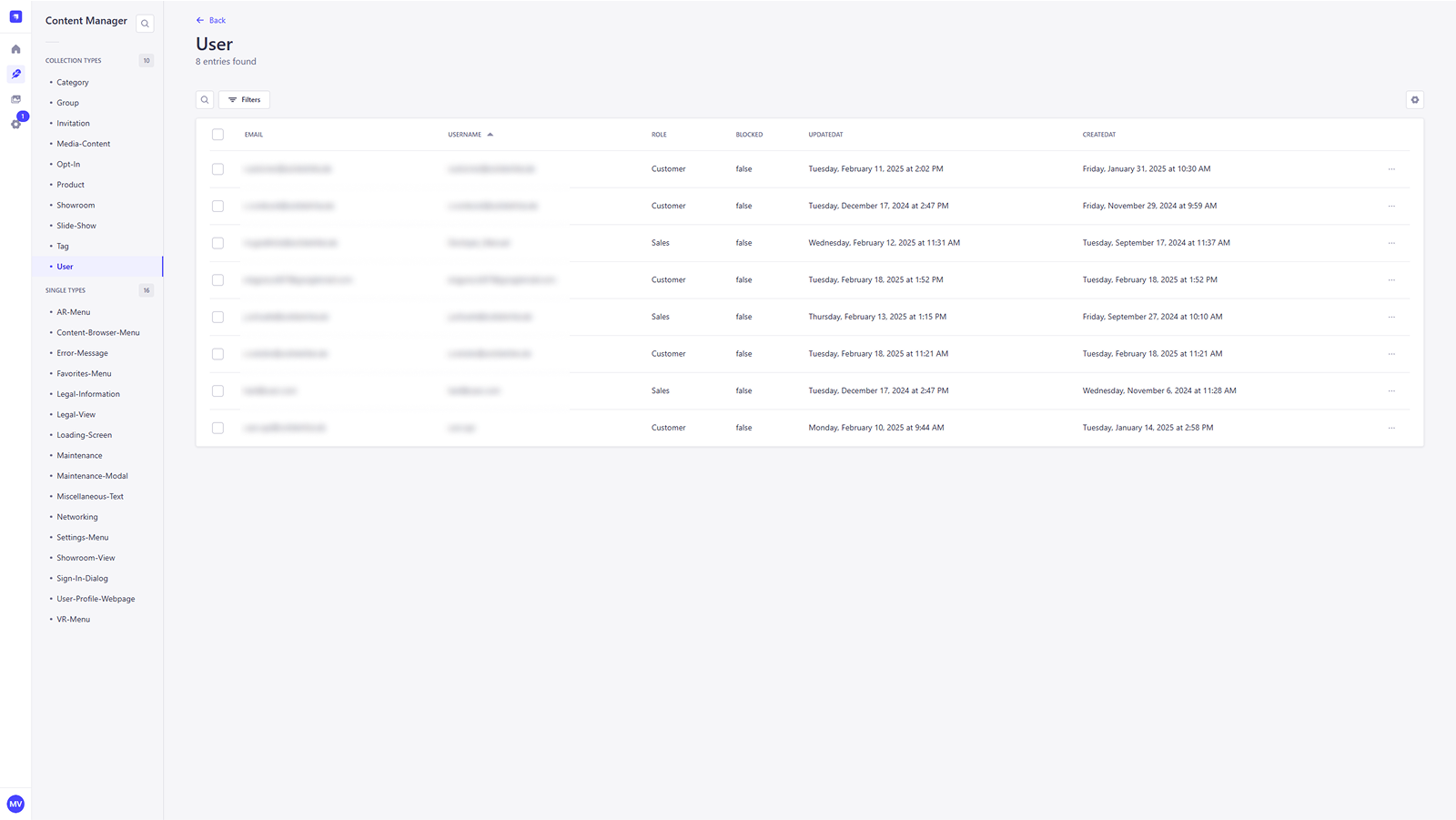
This section provides a structured list of all application users. From this list, you can view a user's details, edit their information, and control their access.
Search & Filter
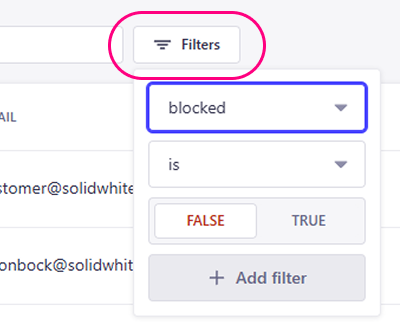
You can search for a specific user by name or email, and filter the list based on specific criteria to find the user you are looking for.
User Details
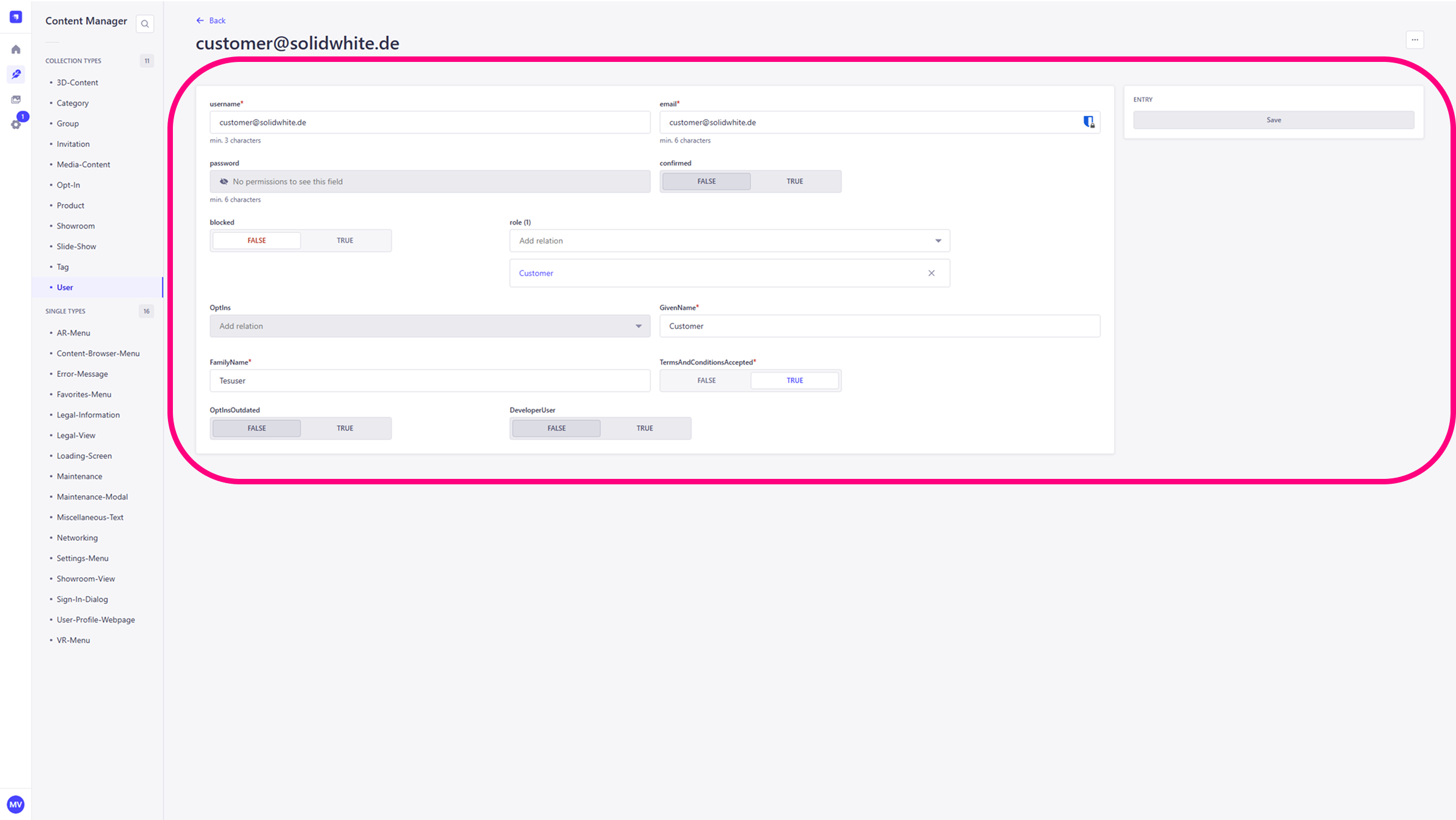
The User Details page allows you to view and manage a user's profile information, including their credentials, roles, and other specific user-related fields.
Basic Information
- Name, Email, Username: These fields can be edited to update the user's basic profile information.
- Block / Unblock: You can block or unblock a user by toggling the
blockedstatus, which controls their access to the application. - Role: Assign a Role to the user by selecting from the available options in the dropdown. This will define their permissions. The available roles are customizable but must be defined in the development environment.
Legal Consent
This section is where you can view and a user's legal consent flags.
- Terms & Conditions: The
TermsAndConditionsAcceptedstatus indicates the user's agreement to the Terms & Conditions. This status is automatically reset when new legal texts are published, and the user must re-accept them on their next login.
USER CONSENT
Users cannot access the application without first consenting to the Legal Information.
- Opt-ins: Opt-ins are entirely voluntary user consents for specific communications. A user’s decision to accept or decline an opt-in has no impact on their ability to access the application.
OptinsOutdated
The OptinsOutdated status indicates changes to a user's previously accepted opt-ins. If an opt-in that a user had accepted is republished, the status is set to TRUE for that user. Upon their next login, users will be notified about the updated opt-ins and directed to their profile page to review and adjust their selections.