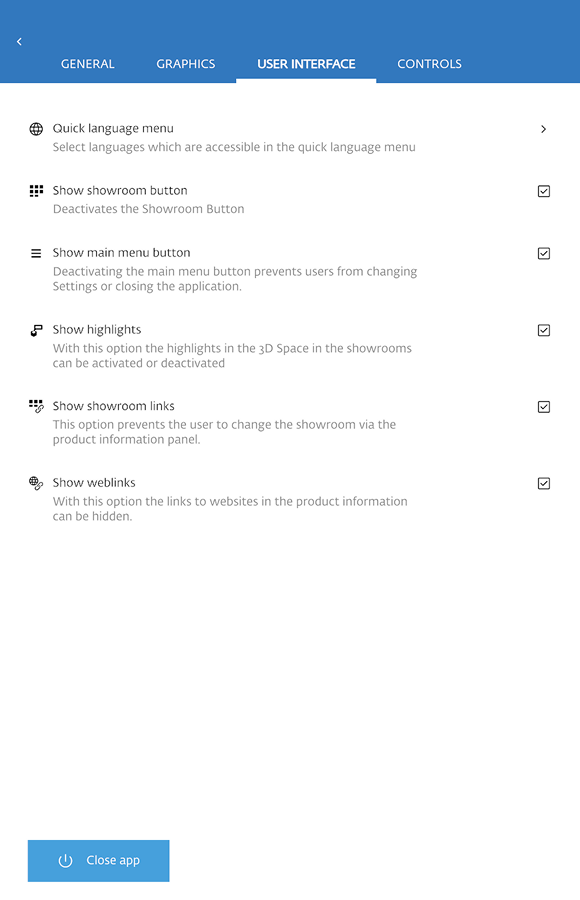
User Interface
Control how key interface elements are displayed or behave within the app. These settings are relevant for customizing the user experience, especially in public-facing installations.
Terminal and Exhibition Use
These controls are especially useful for setting up the VISHOW app in unattended environments, such as terminals, Point of Sale (POS) displays, or trade show exhibits, where you need to restrict user navigation and focus attention on specific content.
-
Language Buttons: Toggle the visibility of the language selector in the bottom-right corner.
-
Show Explorer: Show or hide the Explorer button, that provides access to the showroom navigation menu.
-
Show Settings: Show or hide the Settings button. Disabling this locks access to app configurations and the exit function.
-
Show Hotspots: Turn interactive Hotspots in the 3D showroom on or off. This can be useful when you want to present an object without any UI elements.
-
Showroom Links: Enable or disable clickable product info pages within the showroom.
-
Weblinks: Show or hide external links in product information panels.