Showrooms
Showrooms are interactive 3D spaces that serve as a central hub for showcasing machines, products, or environments. They function as virtual presentation rooms that users can enter, explore, and interact with, either alone or in multi-user sessions.
Info
Features such as Favorites and Access Control are configurable per VISHOW application. Your specific app may not have all features available.
Accessing & Managing Showrooms
To view the available showrooms, navigate to the Showrooms tab within the Explorer. The Showrooms are displayed in a scrollable grid. For better organization, showrooms can be grouped into categories, which appear as folders in the grid.
To open a showroom, it must first be downloaded to your device.
Download first
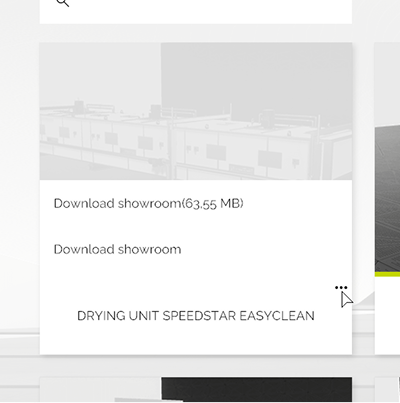
Showrooms are not automatically downloaded. You must first select an entry and explicitly choose a download option from the 3-Dot Menu before it can be opened.
Each showroom entry, as well as each category folder, includes a 3-Dot Menu with the following options:
- Download Showroom: Downloads the core showroom structure to your app. Media files associated with hotspots or products (e.g., videos, PDFs) are not included and must be manually downloaded within the showroom itself when needed.
- Download Showroom incl. all media: Downloads the showroom structure and all associated media files at once, making them immediately available for use within the app.
- Delete Showroom Data: Removes the locally stored files. The showroom entry remains visible in the Explorer and can be re-downloaded at any time.
Favorites
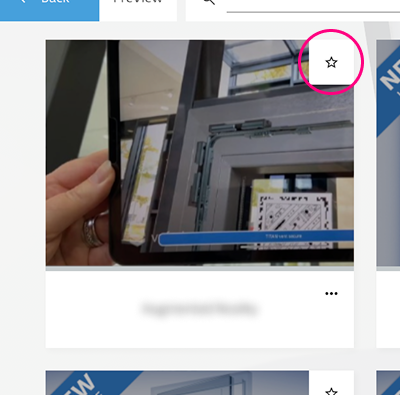
You can mark a showroom as a favorite by clicking the Star Icon in the top-right corner of the entry. Once marked, the showroom is automatically added to the Favorites Folder, which is located at the top-left of the showroom overview.
Managing Customer-Based Favorites
This feature allows you to curate unique lists of favorite showrooms for specific customer profiles.
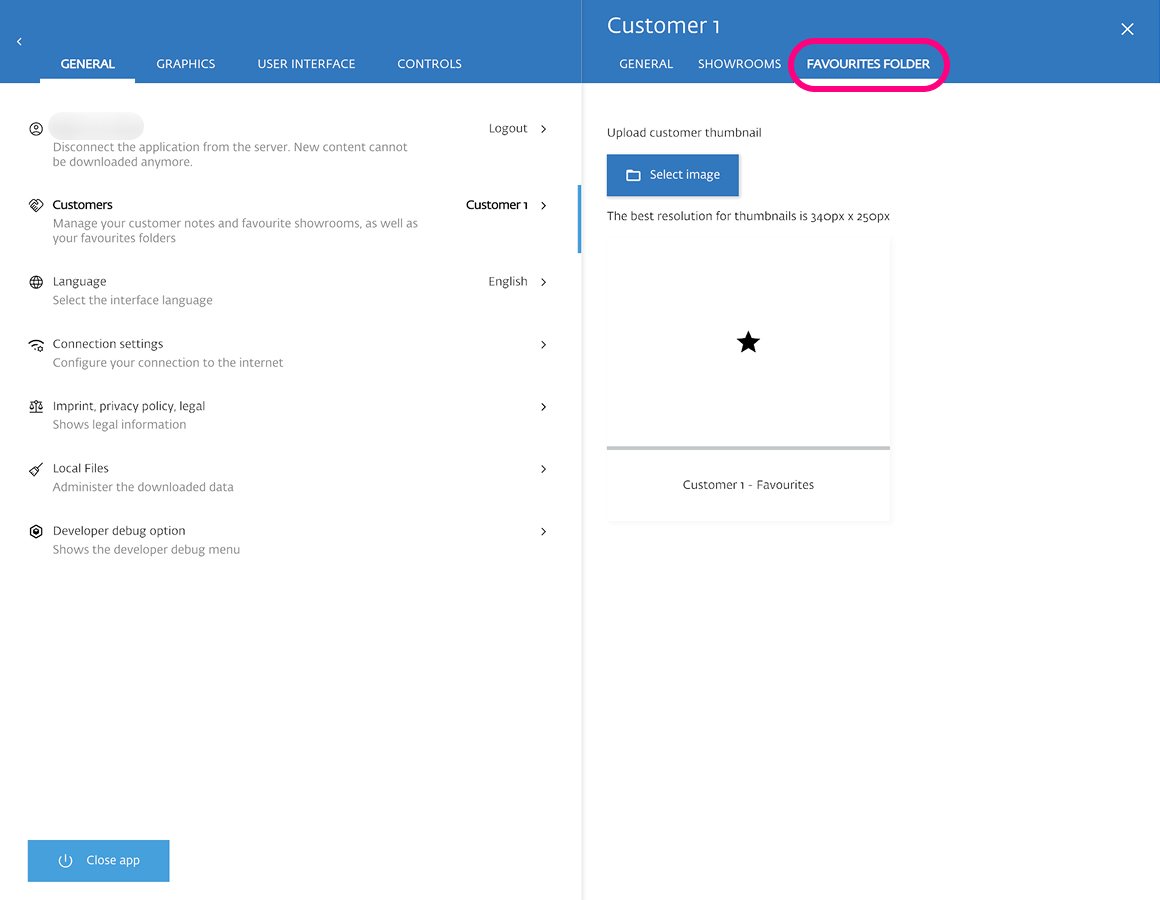
To assign a favorite to a customer, first navigate to the Settings panel and select the desired customer profile.
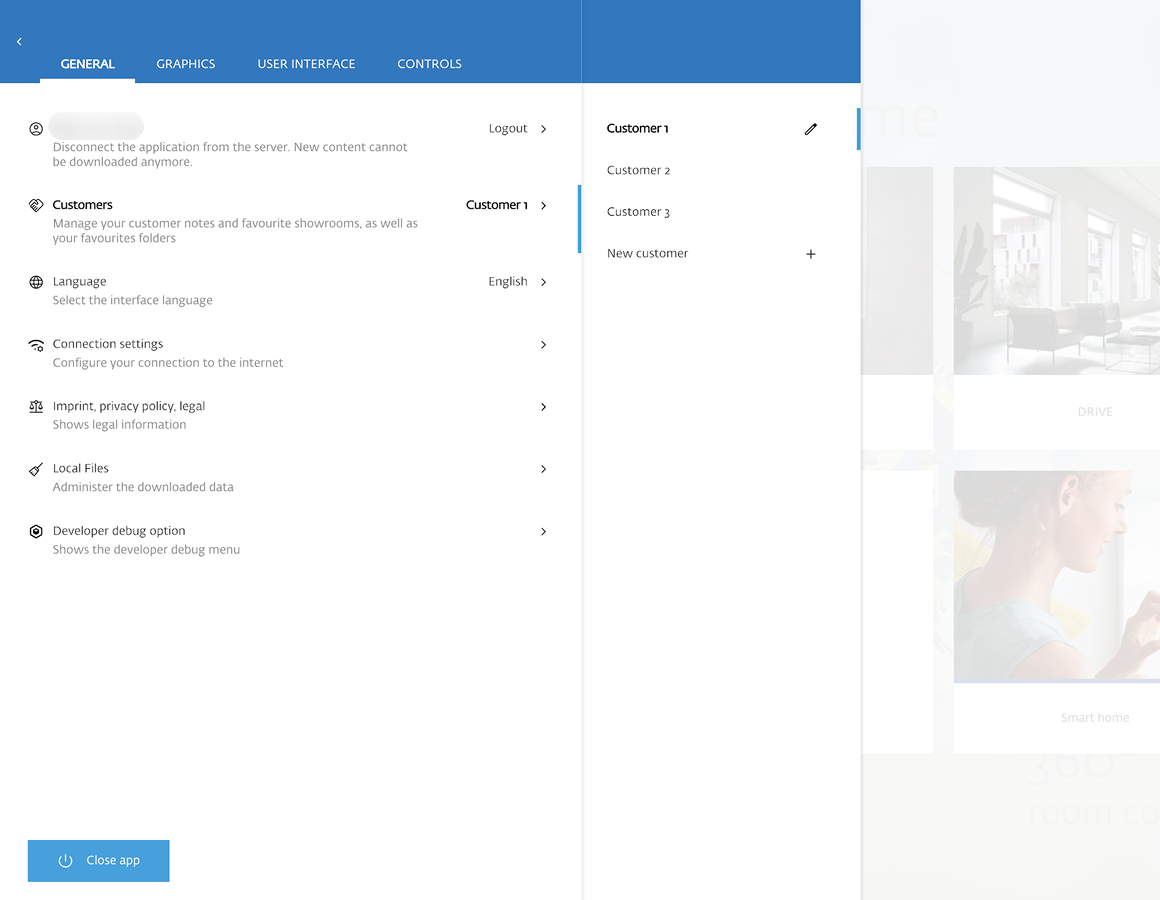
Once a customer is chosen, any showroom you mark as a favorite will be automatically assigned to that customer.
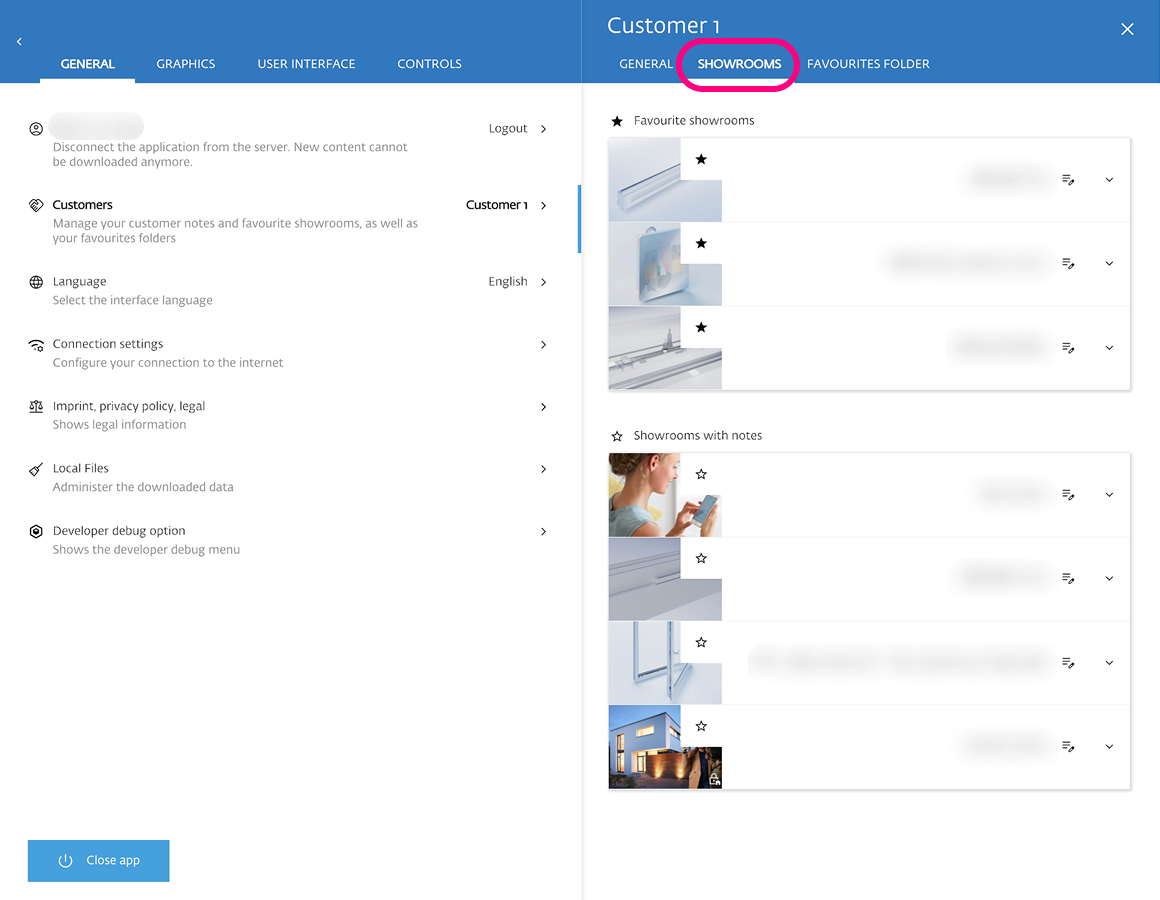
When you assign a favorite showroom to a specific customer, a dedicated Favorites Folder is created for them in the Explorer. You can even assign a custom visual thumbnail to this folder.
Showroom Menu
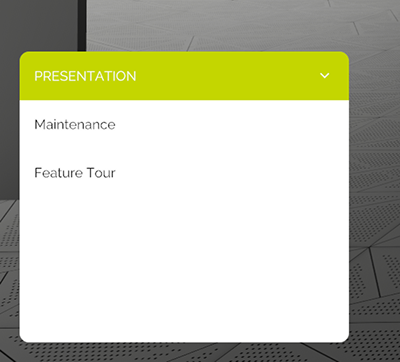
Once inside a showroom, the Showroom Menu appears in the bottom-left corner. It contains buttons for interacting with scene-specific features.
Available button types:
- Hotspot Button: Triggers animations or camera focus related to a specific point in the scene.
- Category Button: Groups multiple features under a single tab or label.
- Animation Button: Plays a timeline animation, such as a machine movement or a process.
- Product Info Page: Opens an overlay with detailed product information, including videos, PDFs, image galleries, and external links.
Full control
Button labels and categories are fully configurable for each showroom.
Access Control
Showrooms can be made visible or hidden based on user roles and permissions. Access can be assigned to individual user groups In the CMS, ensuring that hidden showrooms do not appear in the Explorer for unauthorized users.
Content Updates
Showroom content can be updated on the server-side, without the need to redeploy the application. Text, media, and menu structures can be changed remotely, and these updates are automatically reflected when users open the showroom.