Content-Access
Content-Access is used to manage the visibility of content for different groups. It allows you to define specific sets of showrooms that are visible to a user, ensuring that each participant only sees the content relevant to their role or project.
For example, you can create a content-access entry specifically for "public view", ensuring that tablet devices at a trade show booth only display public-facing marketing showrooms.
Scalable Portfolio Management
VISHOW is designed to scale with your company across marketing, sales, and training. Content-Access is the essential feature that allows you to continuously add new showrooms without creating clutter, ensuring that your expanding digital library remains organized and professional for every user group.
Overview
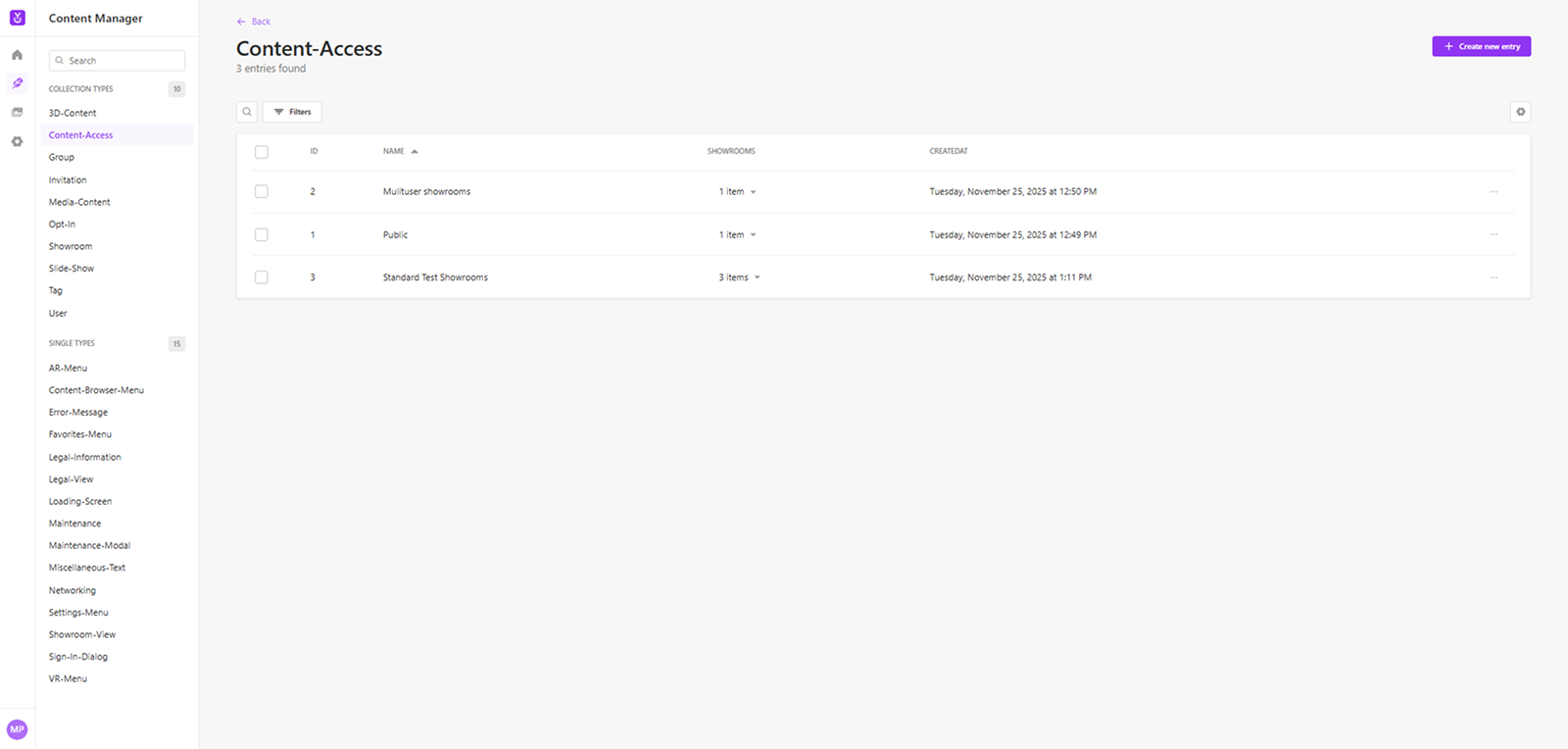
The content-access section provides a structured list of all created entries. The table displays the ID, the Name of the configuration, the number of linked Showrooms and the CreatedAt timestamp.
Creating a new content-access entry
To define a new access configuration, follow these steps:
- Navigate to the Content-Access section in the CMS.
- Click the
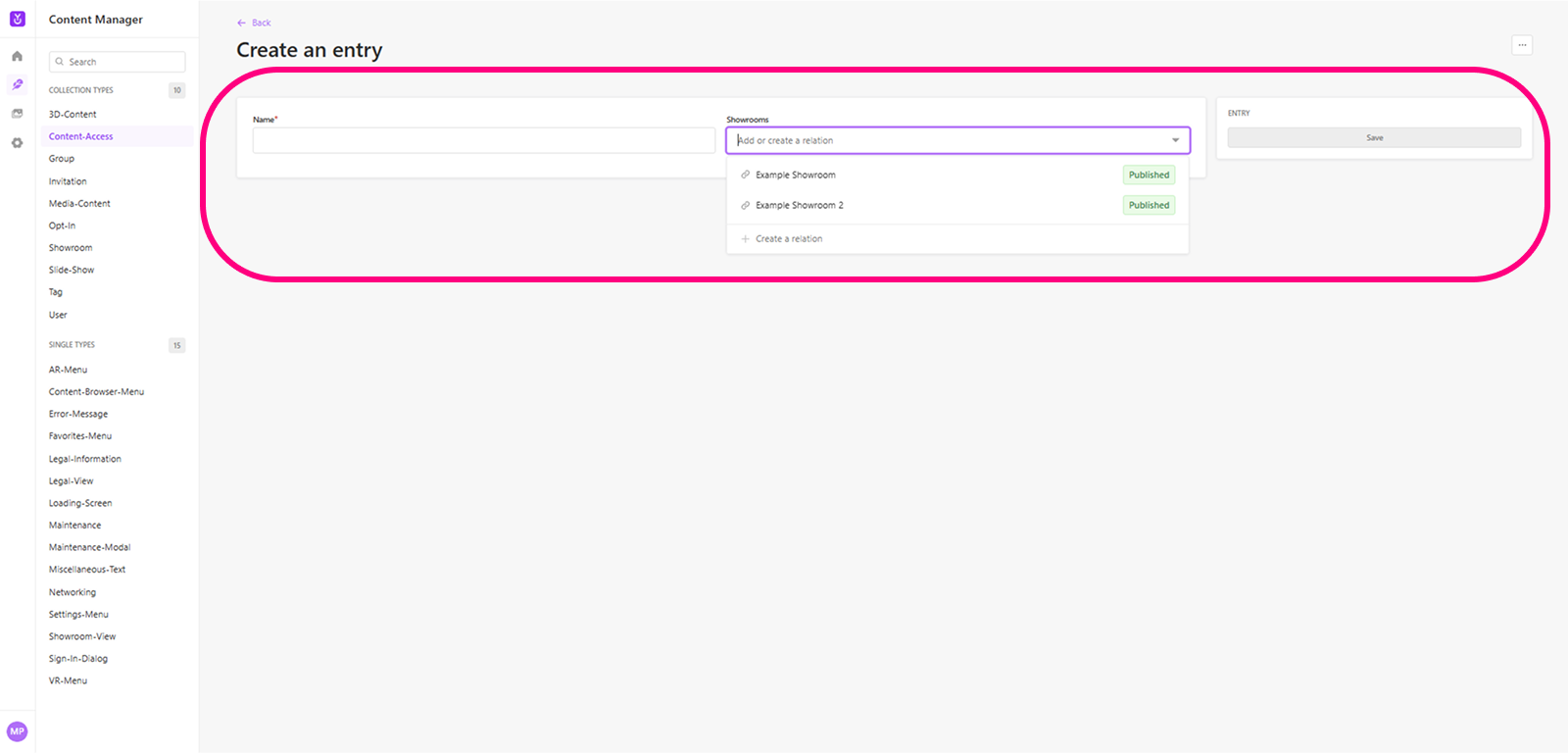
+ Create new entrybutton. - Name: Give your access configuration a clear name (e.g."public view").
- Showrooms: Link the specific showrooms that should be included in this configuration.
- Click
Save.
Linking content-access to groups
Once a content-access is created, it must be assigned to a group to become active for users. This connection is managed within the Group section:
- Navigate to the Group section in the CMS.
- Select the desired group or create a new one.
- In the Access field, link the content-access entry you created previously.
- Now, any user assigned to this group will exclusively see the content defined in that configuration.
Applying content-access to users
The final step connects individual users to your access logic during the Invitation process:
- Assign a group: During the invitation setup, select the appropriate group for the user.
- Result: Upon login, the user's interface is automatically filtered. They will only be able to access the showrooms linked to their assigned group via the content-access configuration.