Account Access
This section is your guide to getting started with the app. Depending on the app's configuration, you may be required to log in to access content or it may be available for public viewing. This guide provides an overview of how to create your account, log in, recover your password and understand the role-based access model that governs your permissions within the application.
Create Account
This guide explains the process for setting up your personal account after receiving an invitation. After an administrator has invited you, an email containing a secure invitation link is sent to your inbox.
Video Tutorial
This video provides a complete guide on how to create your app account, download the app, and log in for the first time. You will learn how to accept an invitation and enter your account details.
-
Open the email titled “You have been invited” and click the
Accept invitationlink.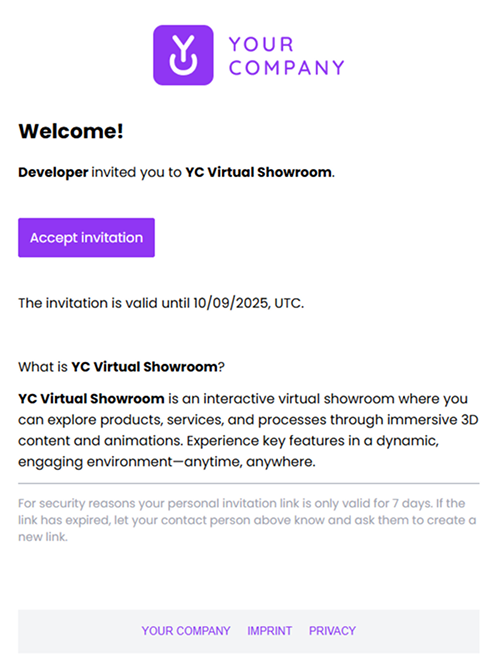
-
You will be redirected to the registration page. The form includes fields for your First name, Last name, Email, and Password. You must accept the terms and conditions before submitting the form.
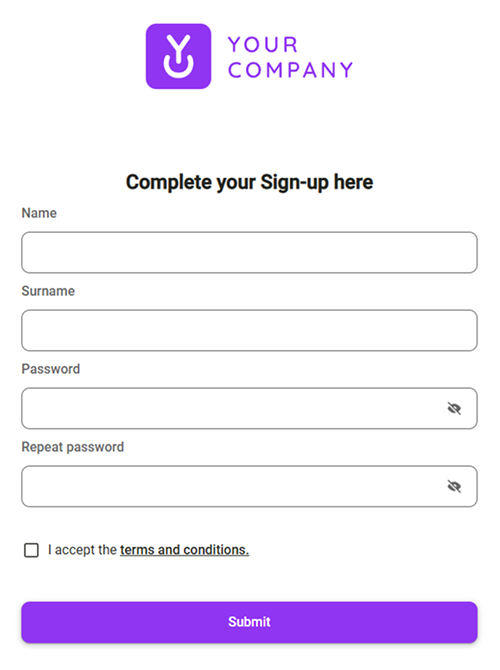
-
After submitting the form, your account is created and you will be automatically logged in.
-
Download the VISHOW app for your platform.
-
Log in to the downloaded app using the email and password you just created.
Login
This guide explains the process for accessing the VISHOW app and the steps for password recovery.
LOGIN OPTIONS
The need for a login is configurable for each app. Some VISHOW apps are configured for public access, allowing content to be viewed without an account. Others require you to log in to access features and content.
Login Screen
The login screen appears when you launch the app. Enter your credentials in the provided fields. If you select the Auto login checkbox , the app will remember your details and log you in automatically the next time.
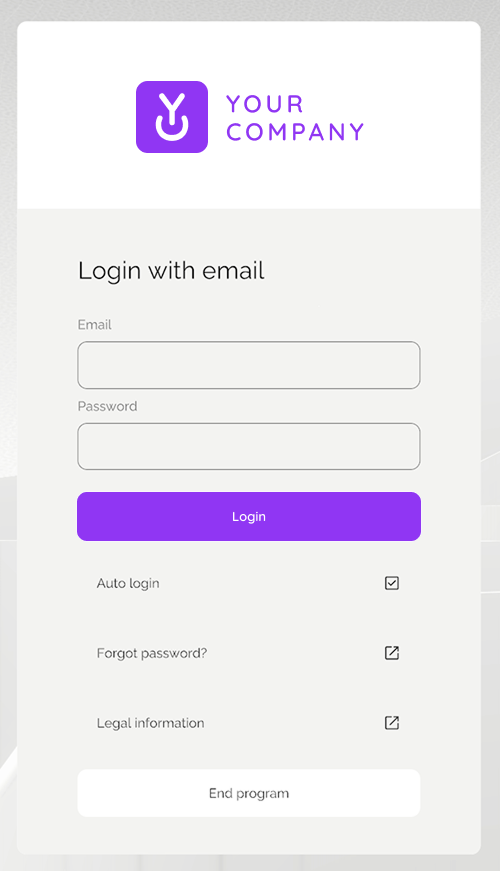
SSO Login
The application supports Single Sign-On (SSO) to streamline the login process and improve security. With SSO enabled, users can authenticate automatically using their existing corporate or organization credentials, granting immediate access without needing to manually enter a username or password. This provides seamless authentication with company-managed accounts and removes the need to manage separate application credentials.
Forgot Password
If you forgot your password, click the Forgot your password? link on the login page to begin the reset process.
-
Enter your registered email address in the provided field and click the
Send Emailbutton .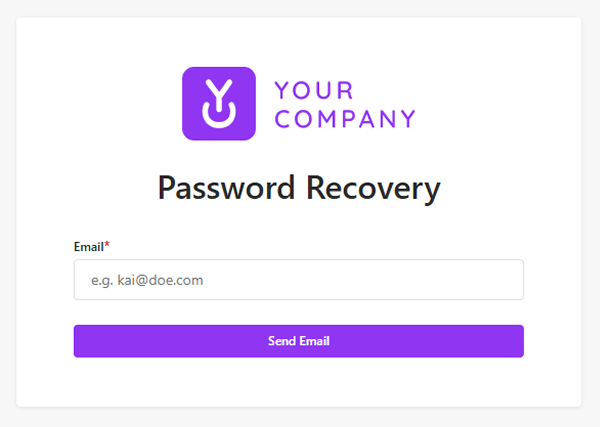
-
Check your inbox for the password reset email and click the
Reset Passwordbutton.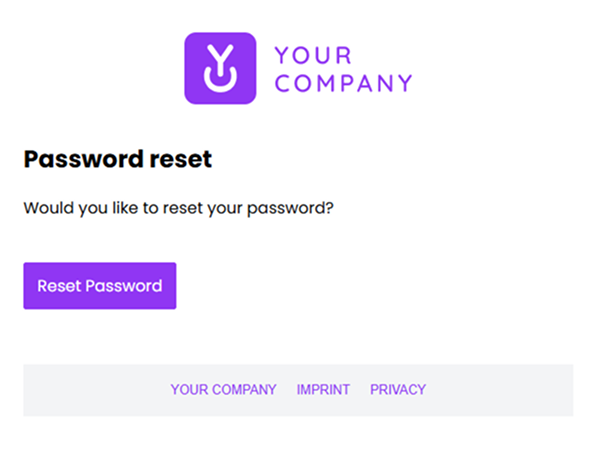
-
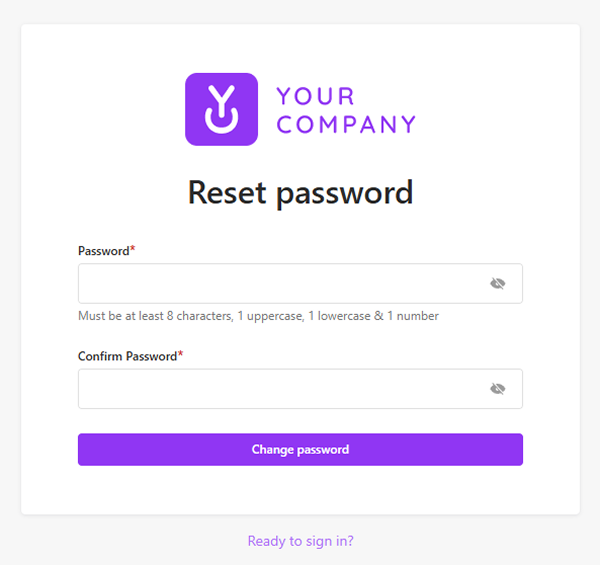
You will be redirected to a page where you can set a new password.
Access Management
User accounts are managed centrally and follow a role-based access model. Users are typically invited by administrators, allowing content control and access management.
Invitation only: New users must be invited via email through the CMS or admin interface. For details on how to invite, see the CMS documentation on Invitation.
Access Groups: Users can be assigned to specific content access groups that define which content is visible and accessible.
Default Roles: The system provides four standard user groups:
- Guest: Limited visibility, typically used for view-only access.
- Customer: Access to assigned showrooms and presentations.
- Team: Internal team members with broader access.
- Admin: Full access including user and content management.
Granular Access Options: Content visibility and interaction can be further refined with permission options per group.
Flexible Access Control
Access control is configured to meet the unique requirements of your project. While the system supports strict, role-based access requiring user login, VISHOW app can also be configured to allow public access to content and showrooms without an account.