Offline Mode
The Offline Mode allows users to access the application and its content without an active internet connection. This is essential for stable presentations in environments with limited or no connectivity, such as trade shows or remote customer sites.
Platform Availability
Offline Mode is available for Windows and iOS desktop applications. The Web version does not support offline use and requires an active internet connection.
Preparation: Downloading Content
Before going offline, you must ensure that the required content is stored locally on your device.
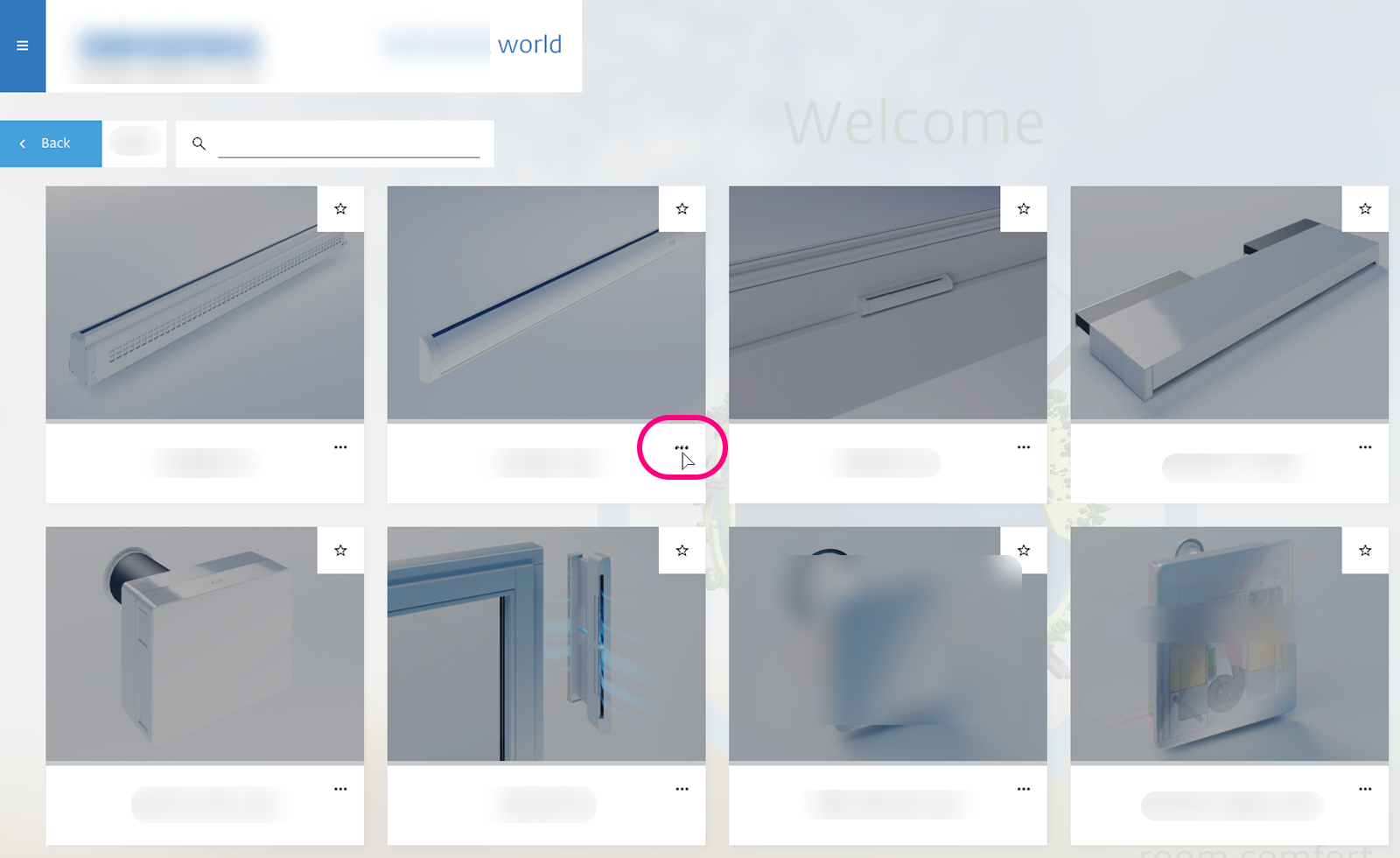
- Open the Explorer while you are still online.
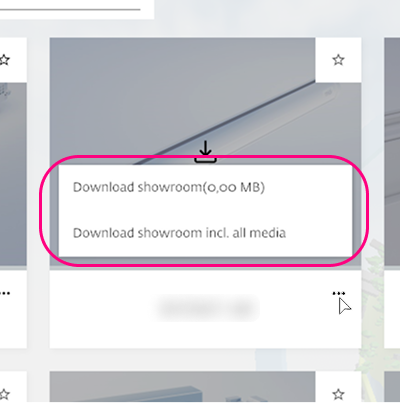
- Click the three-dot menu on a showroom tile.
- Select
Download showroomorDownload showroom incl. all media.
Media Files & Slideshows
The incl. media option covers rich media (Images, Videos, PDFs) that are linked to that showroom. However, Slideshows are cached on demand: only the specific pages and languages you physically navigate through while online will be available offline.
Entering Offline Mode
Depending on your application's setup, there are three ways to activate Offline Mode:
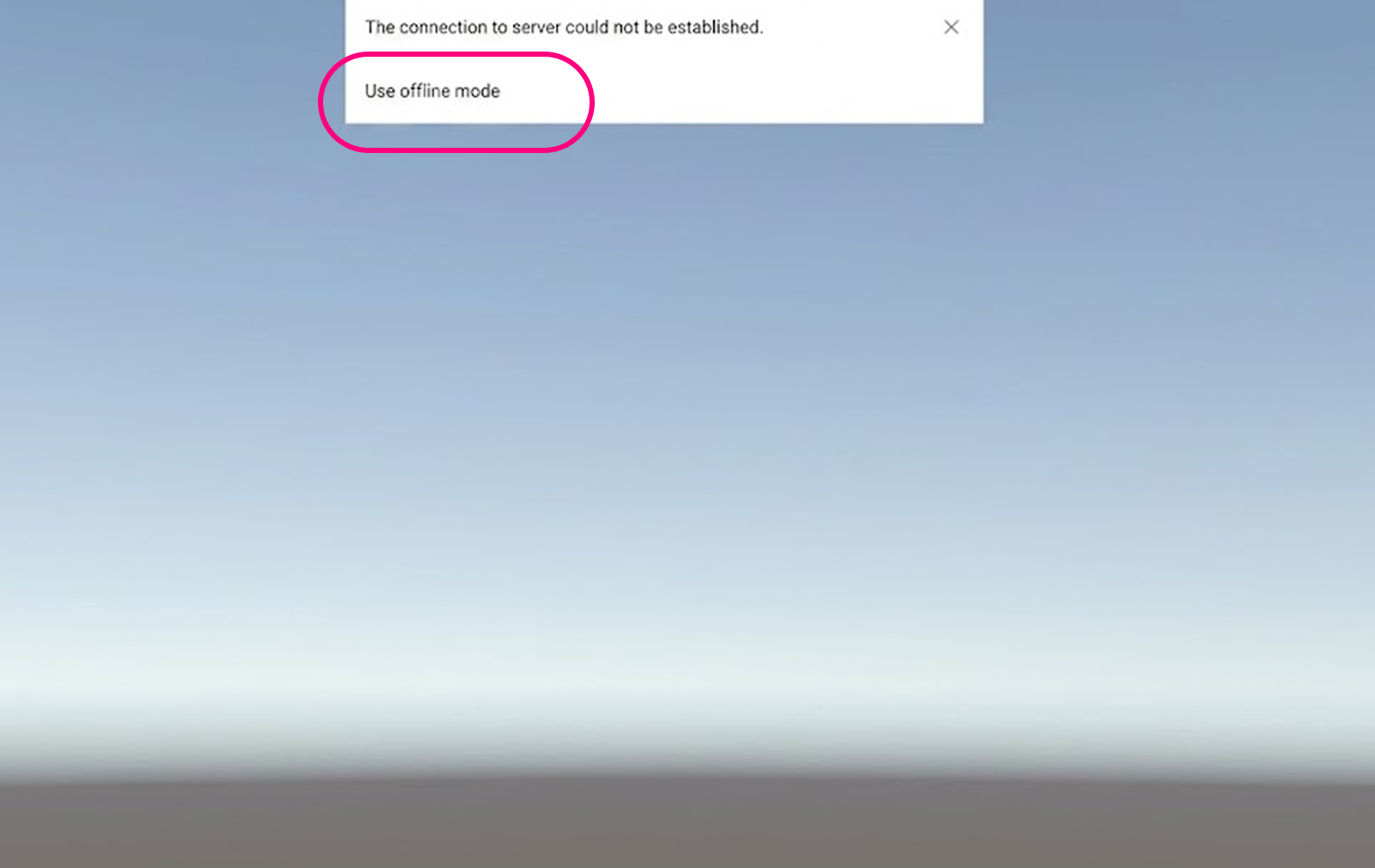
1. Connection Error
If the app cannot reach the server during startup, an error message appears. Click Use offline mode to proceed with cached content.
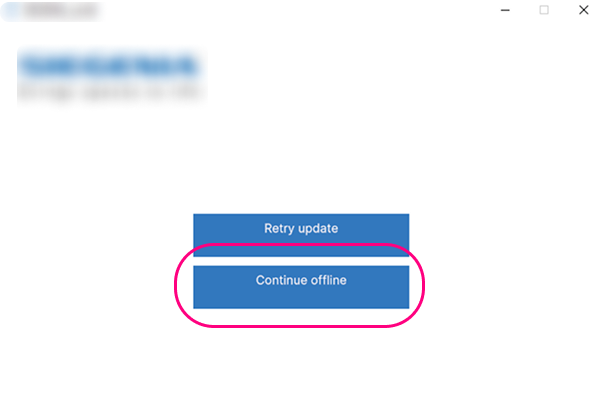
2. App Launcher
If your application uses a launcher to check for updates, you can select Continue offline.
3. Login Screen
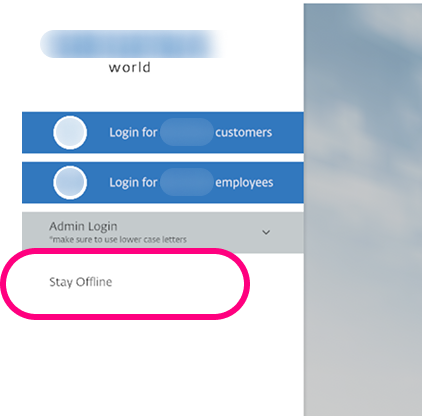
On applications with a login requirement, you can choose to Stay Offline directly from the login page to access previously loaded data. This option allows you to access your local data immediately without needing to disconnect your internet connection
Content Availability
In Offline Mode, your access is limited to data stored in your local cache:
- Showrooms: Only showrooms that were successfully downloaded are accessible. Unavailable showrooms will display an
Xicon on the tile when you hover over them to indicate they cannot be started. - Slideshows: Slideshows are available if they were previously opened online.
- Languages: Global texts and localized content are only available offline if the specific language was selected and loaded at least once while the device was online.
- Disabled Features: Online-only features like live updates, syncing, or multi-user meetings are unavailable.
Success Strategy
To guarantee a smooth experience, follow this step-by-step list before leaving for an event:
-
Download Showrooms: Select
Download showroom incl. all mediafor every showroom you need. -
Sync Languages: Switch the app to every language version you intend to use to cache global texts.
-
Pre-load Slideshows: Open each Slideshow you need and click through every single page. If you need multiple languages, you must repeat this process, visiting every page for every language, to ensure the specific translations and media for those slides are saved.