Slideshows
The Slideshow Tab provides access to all interactive slideshows available in the application. These slideshows can be placed inside virtual showrooms and used to present text, images, Videos or PDF documents in a structured and immersive way. For instructions on how to create a slideshow, see the Slideshows in the CMS section.
Accessing the Slideshow Tab
-
Click the Explorer button at the top of the interface.
-
Select the Slideshows Tab to open the slideshow overview.
-
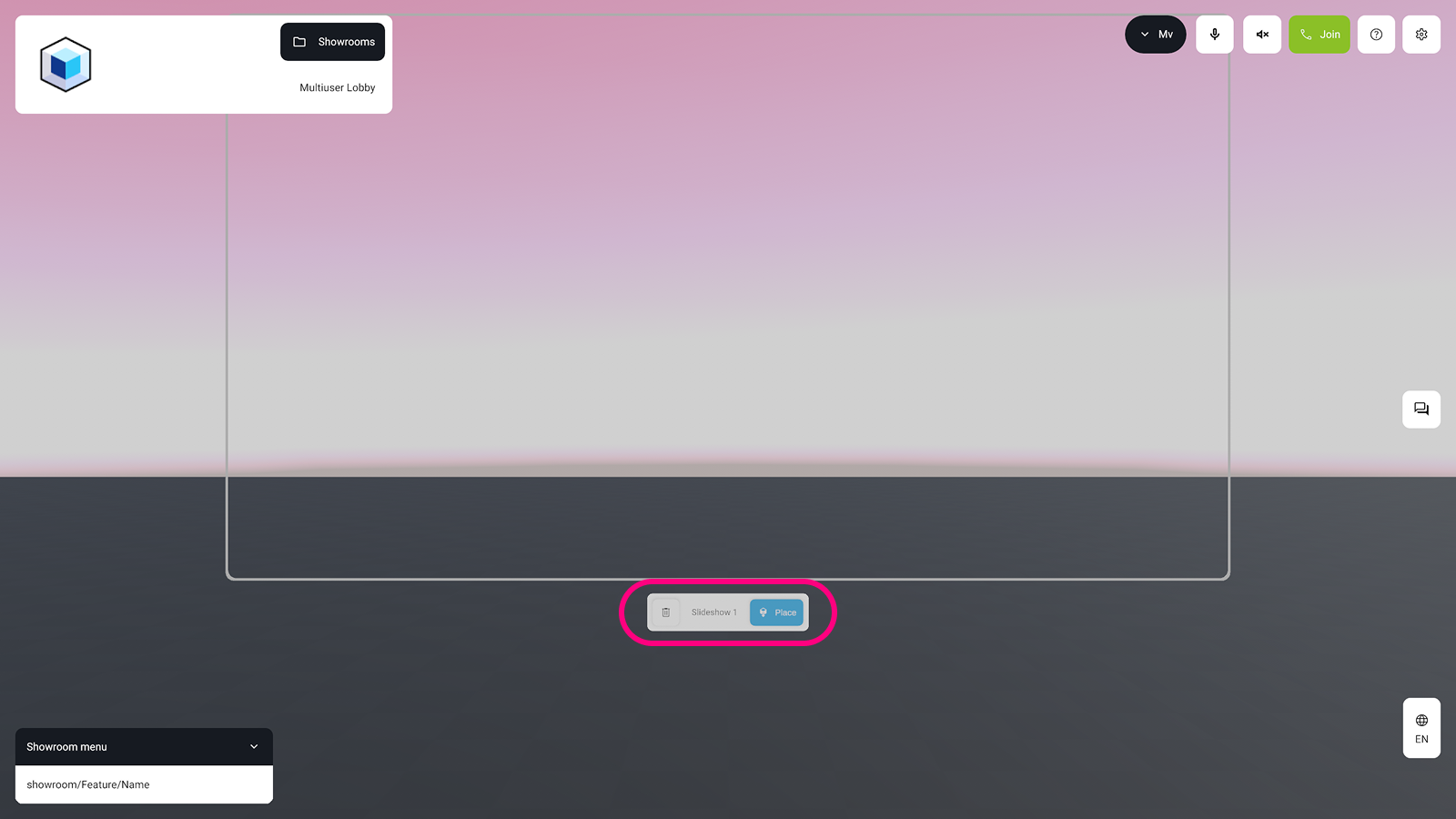
Choose a slideshow card to enter the placement mode inside the virtual room.
-
Use the Place button to anchor the slideshow in the room or click the
trash iconto remove it.
Slideshow Interaction
Slideshows are designed to be temporary presentation tools. They can be created by team members or admins in the CMS and are accessed via the Explorer. Once placed inside a showroom, a slideshow only remains there for the duration of the current user session. As soon as the last user leaves the showroom or ends the session, all placed slideshows are automatically removed.
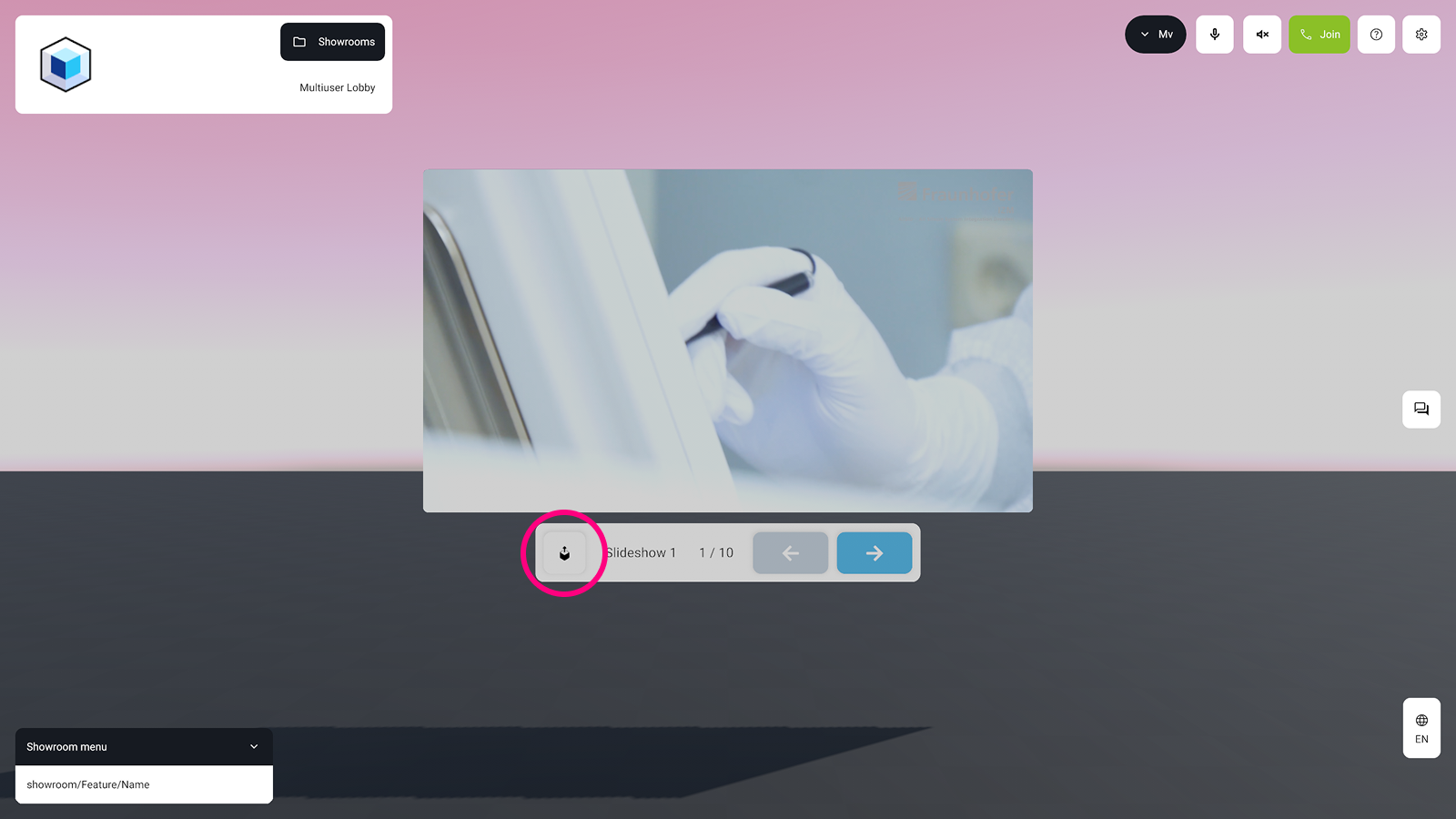
Once placed, a slideshow becomes interactive with its own UI.
Basic Interaction
Reposition: Use the pick up button to reposition the slideshow anywhere in the virtual room.
Navigating Slides
The slideshow's user interface adapts to the type of content being displayed.
- Image & Text Slides: Use the
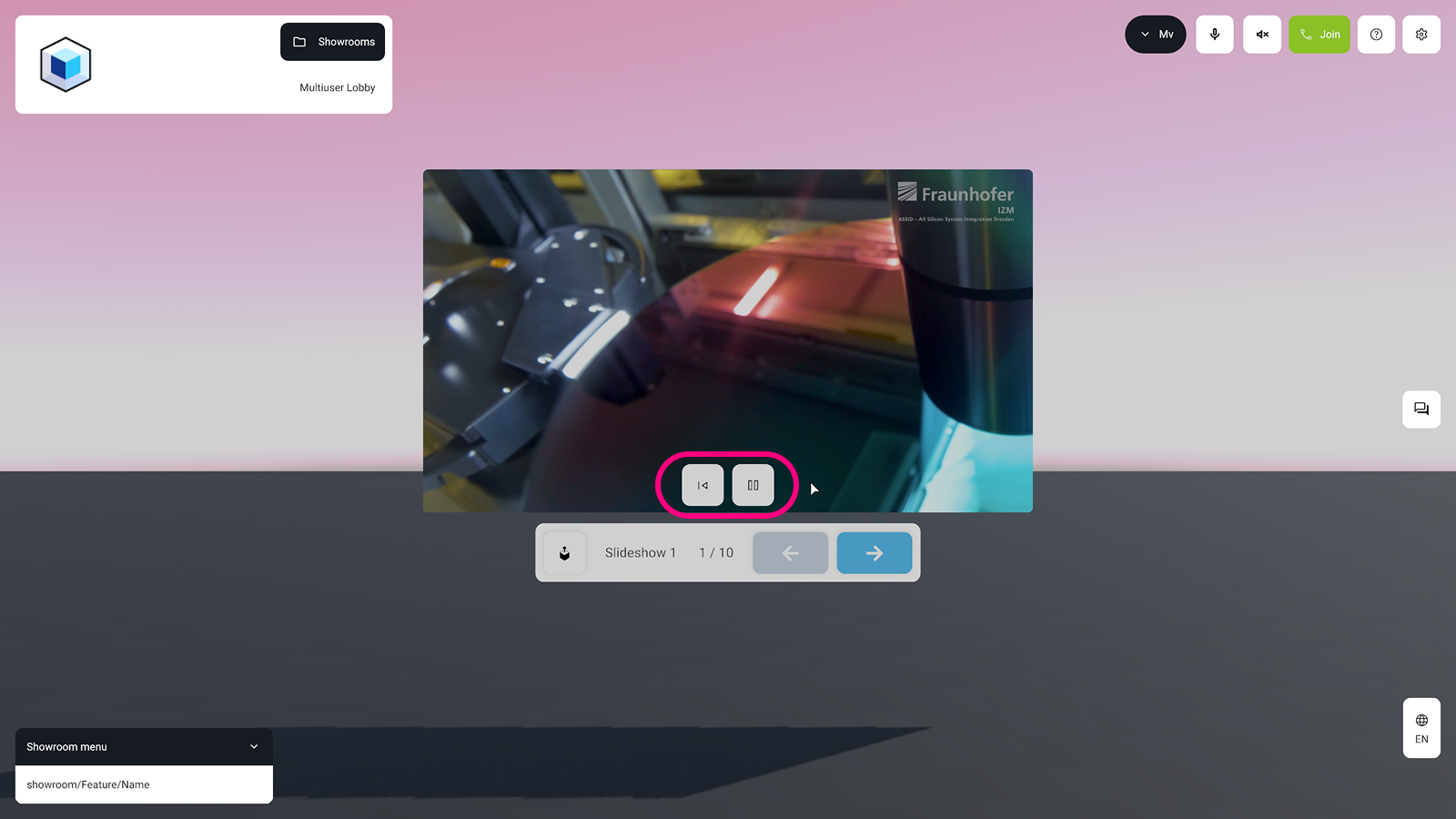
Arrow Buttonsto navigate through the sequence of slides. - Video Slides: A dedicated UI appears upon hover, allowing you to play, pause, or restart playback.
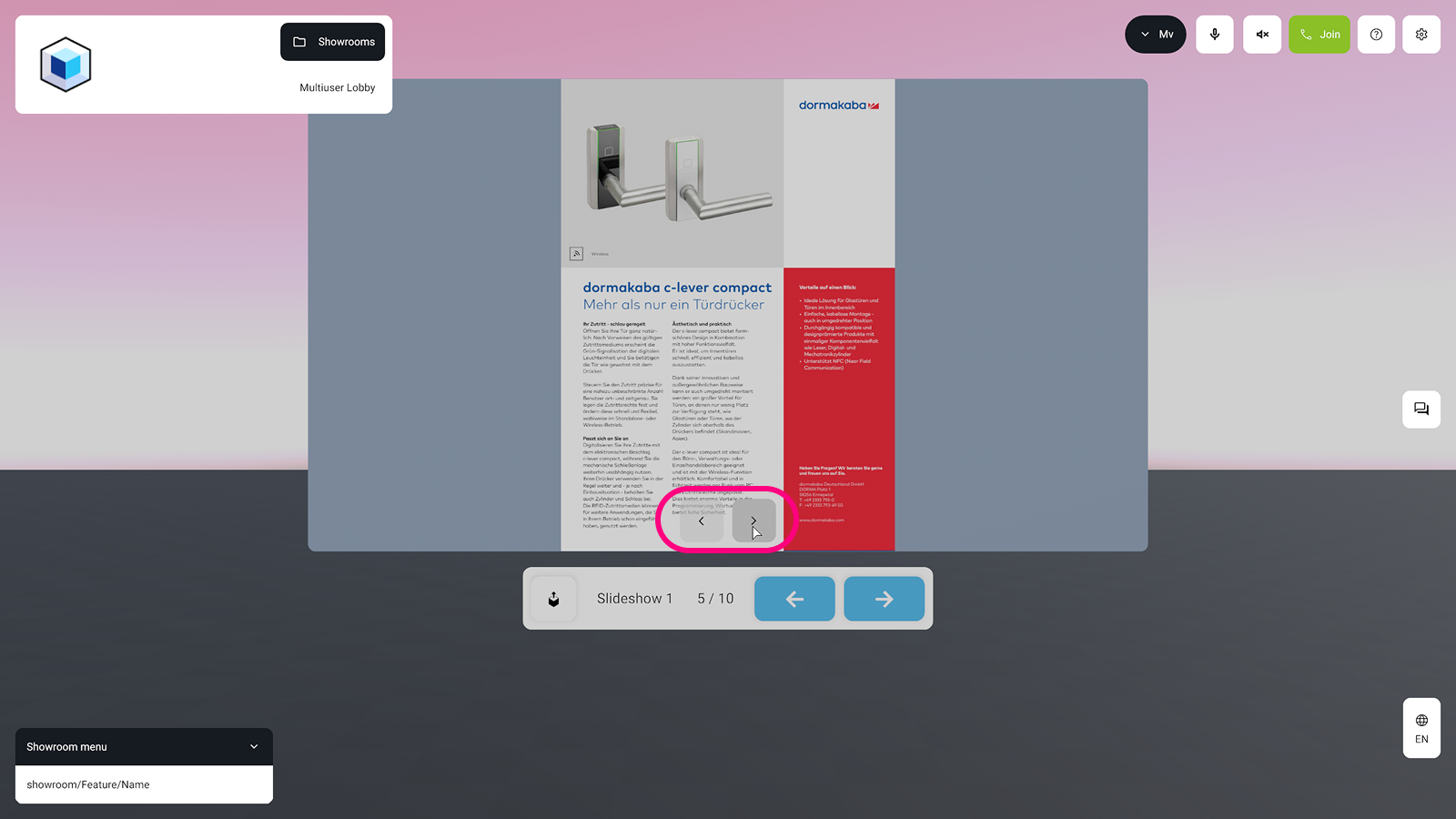
- PDF Slides: Hovering over a PDF slide reveals additional navigation arrows for paging through the multi-page document.
Configuration
For instructions on how to create and configure a slideshow, see the Slideshows in the CMS section.