Meeting
The Meeting feature allows users to join or leave a shared virtual session where real-time communication is possible via voice chat and text chat. This enables collaborative exploration of showrooms with other participants.
Join Meeting
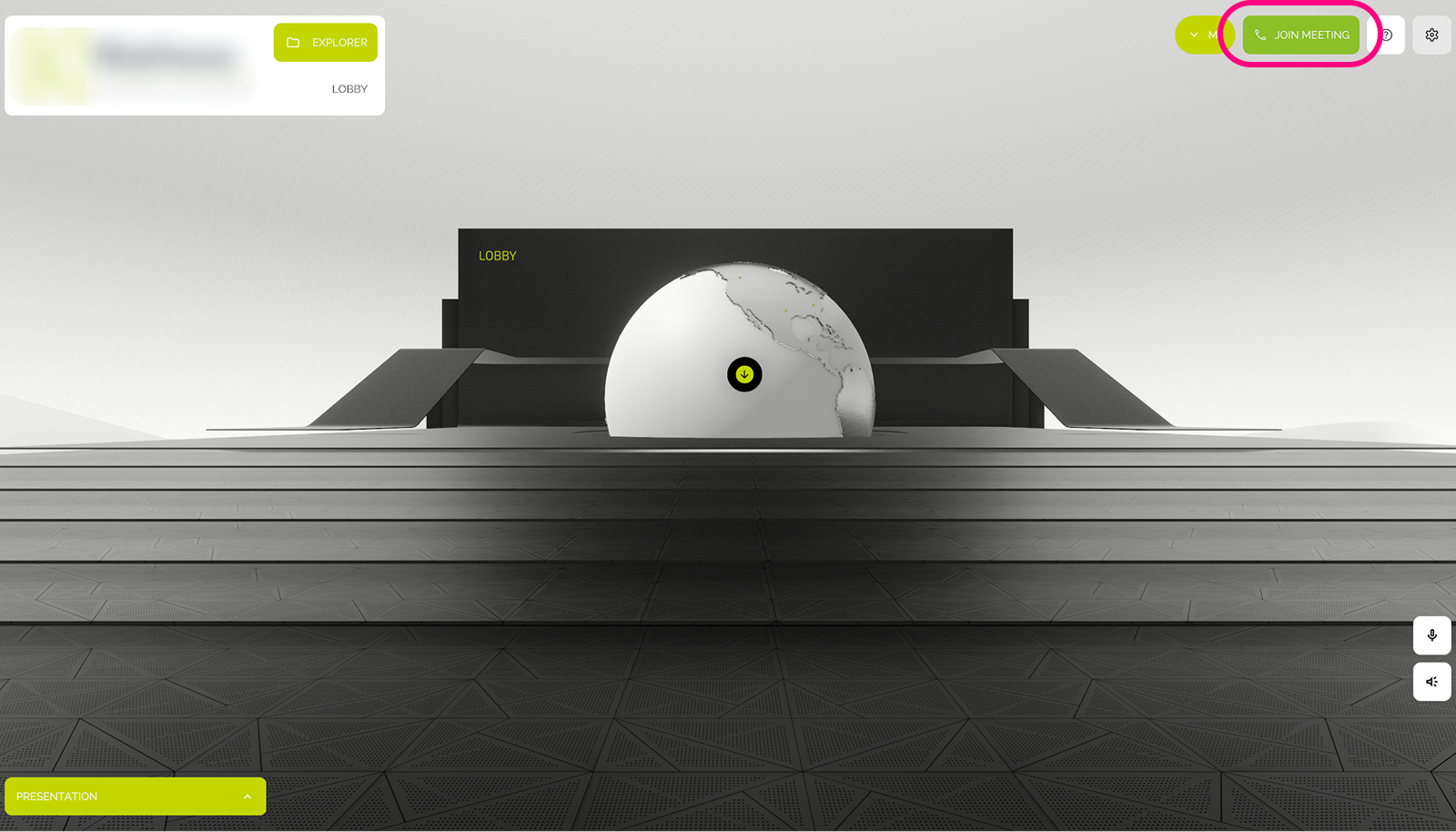
Click the Join Meeting button to enter a live session.
Joining the session activates your presence in the 3D space and enables Voice Chat.
Communication Note
Text Chat is available immediately after selecting your User Group and is active before you join the meeting. Voice Chat, however, is only enabled automatically once you click Join Meeting.
Once you are in the session:
- Your name and avatar are visible in the session.
- Voice Chat is enabled automatically.
- Other users can see your avatar in the same showroom.
Leave Meeting
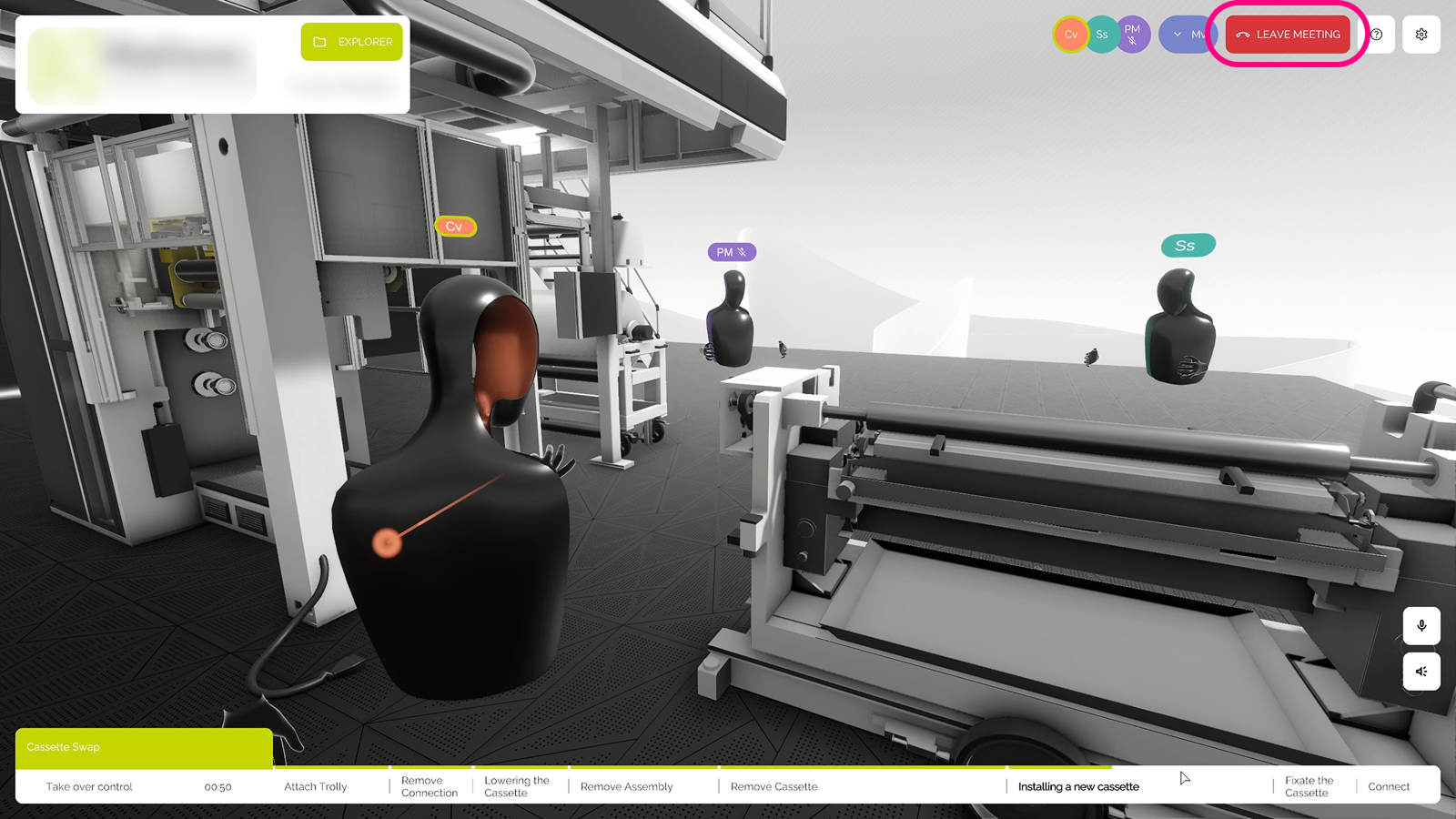
Click the Leave Meeting button to exit the session.
This disables the voice chat and hides your avatar from the shared environment.
- Voice chat is deactivated
- Your avatar is no longer visible to others
User Groups
After logging in, you'll be prompted to select a customer group. This step determines two things: the content you can access and the group you will join in multi-user sessions. A group can be a specific customer, a customer project, a training group or another type of group that suits your use case.

Choosing a group makes you a member of that group, allowing you to see and interact with other users from the same group. This also affects shared interactions such as text chat. Once you have selected your group, you will enter the Lobby. From the Lobby, you can click the Join button to enter the active multi-user session with all present group members.
Group system
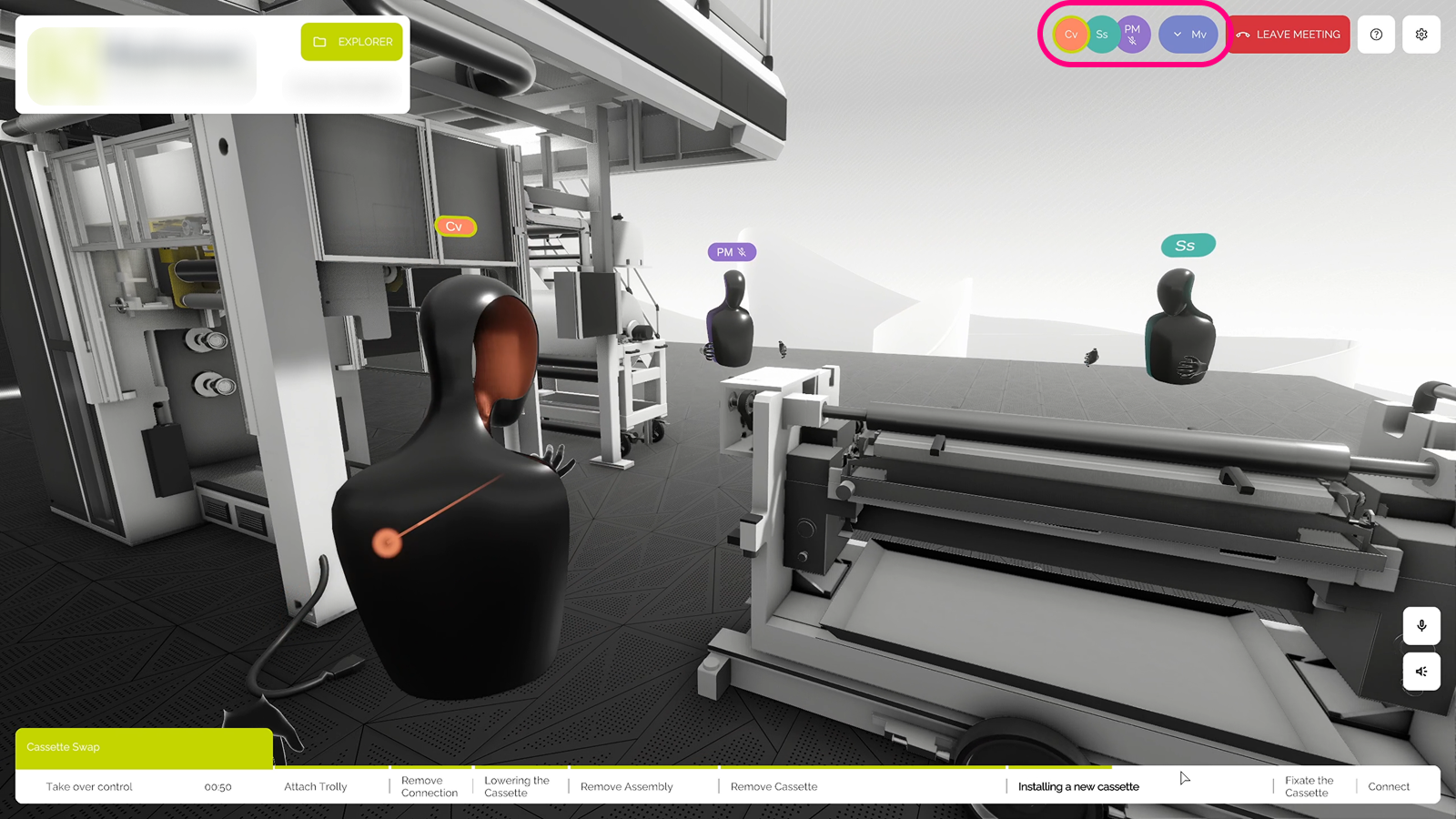
When you join a multi-user session, you are added to a shared space with other attending group-participants. The VISHOW app provides a clear way to see who is currently in the session.
All group members that joined the multi-user-session are displayed in the top right corner as circular avatar icons containing their initials. You can hover over any avatar to see the participant's full name. When a user is speaking, their avatar is highlighted with a green outline, providing a quick visual indication of who is currently talking.
User Roles
User roles define the level of interaction and control within a meeting or showroom session. There are two predefined roles:
Team
- Can present slideshows, 3D-Models and animations to all participants.
- Has the ability to switch between showrooms
- Controls the flow and structure of the session
Customer
- Has restricted access
- Can view content shared by the Team
- The ability to switch showrooms is configurable
- Cannot control global presentations.
Managing User Roles
User Roles and Groups can be defined through Invitation and adjusted through User in the CMS