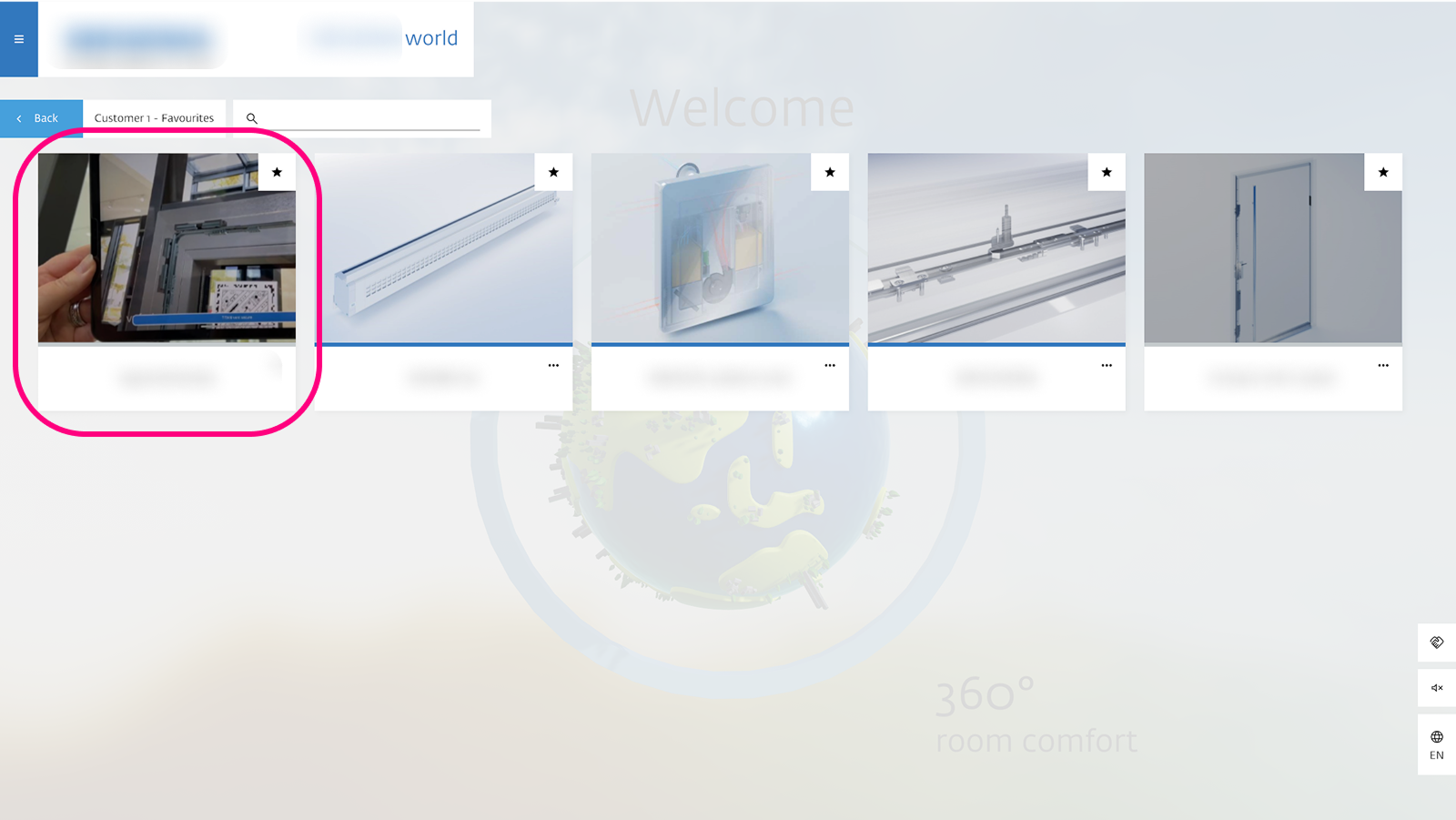
Overview
The Explorer is the central hub for accessing all interactive content within the VISHOW application. It is organized into three distinct tabs: Showrooms, Slideshows, and 3D Models. It provides a grid-based overview of all available content, which you can browse and filter.
- Showrooms are interactive 3D environments that serve as the core setting for all other assets.
- Slideshows are curated sequences of various media types, such as images, text, PDFs and videos, presented as guided narratives.
- 3D Models are individual 3D product models that can be placed and viewed within Showrooms.
Edit Showrooms, Slideshows & 3D-Models
All content types available in the Explorer are fully editable via the CMS and can be updated at any time.
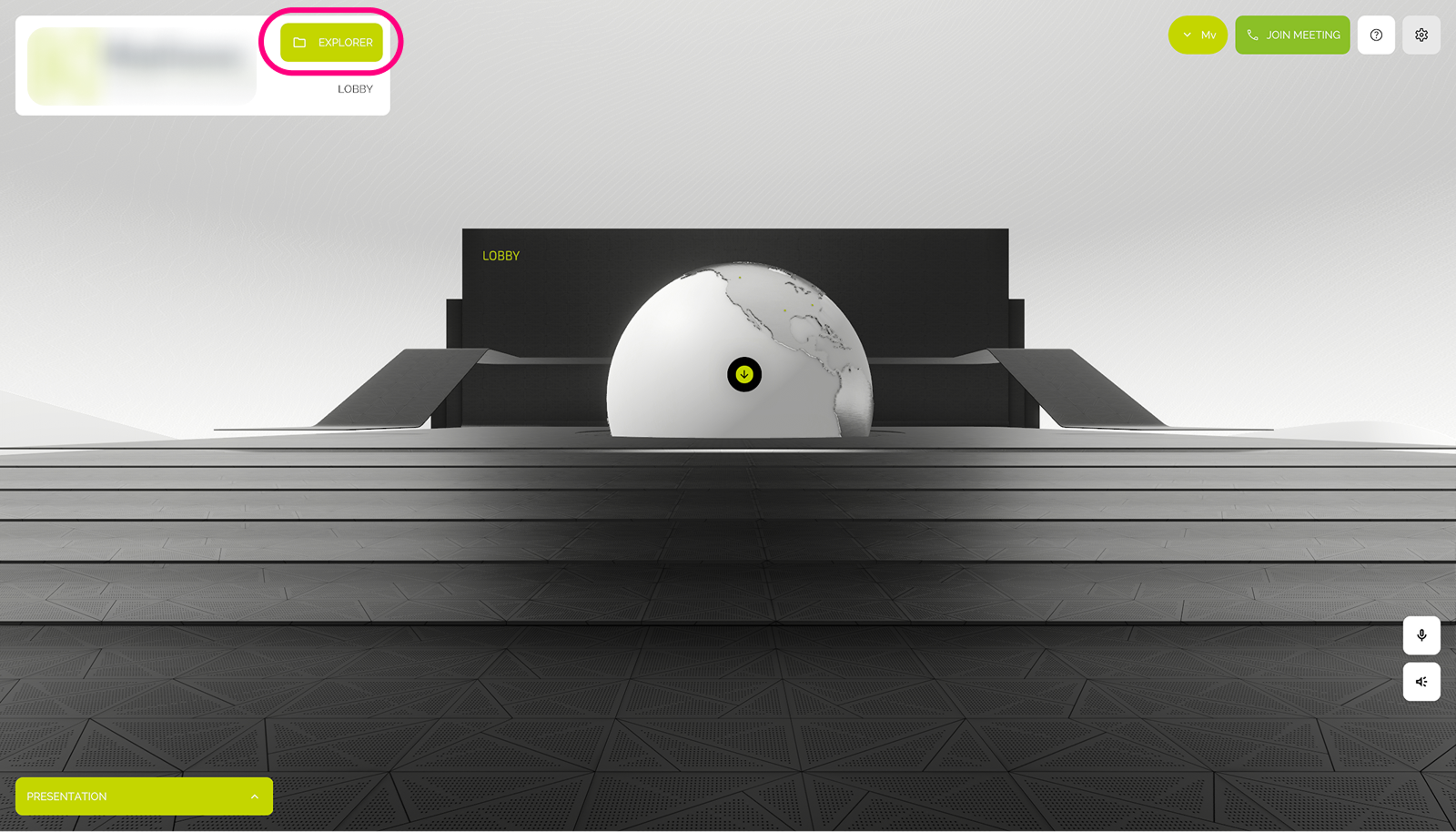
The main Lobby and entry point for users.
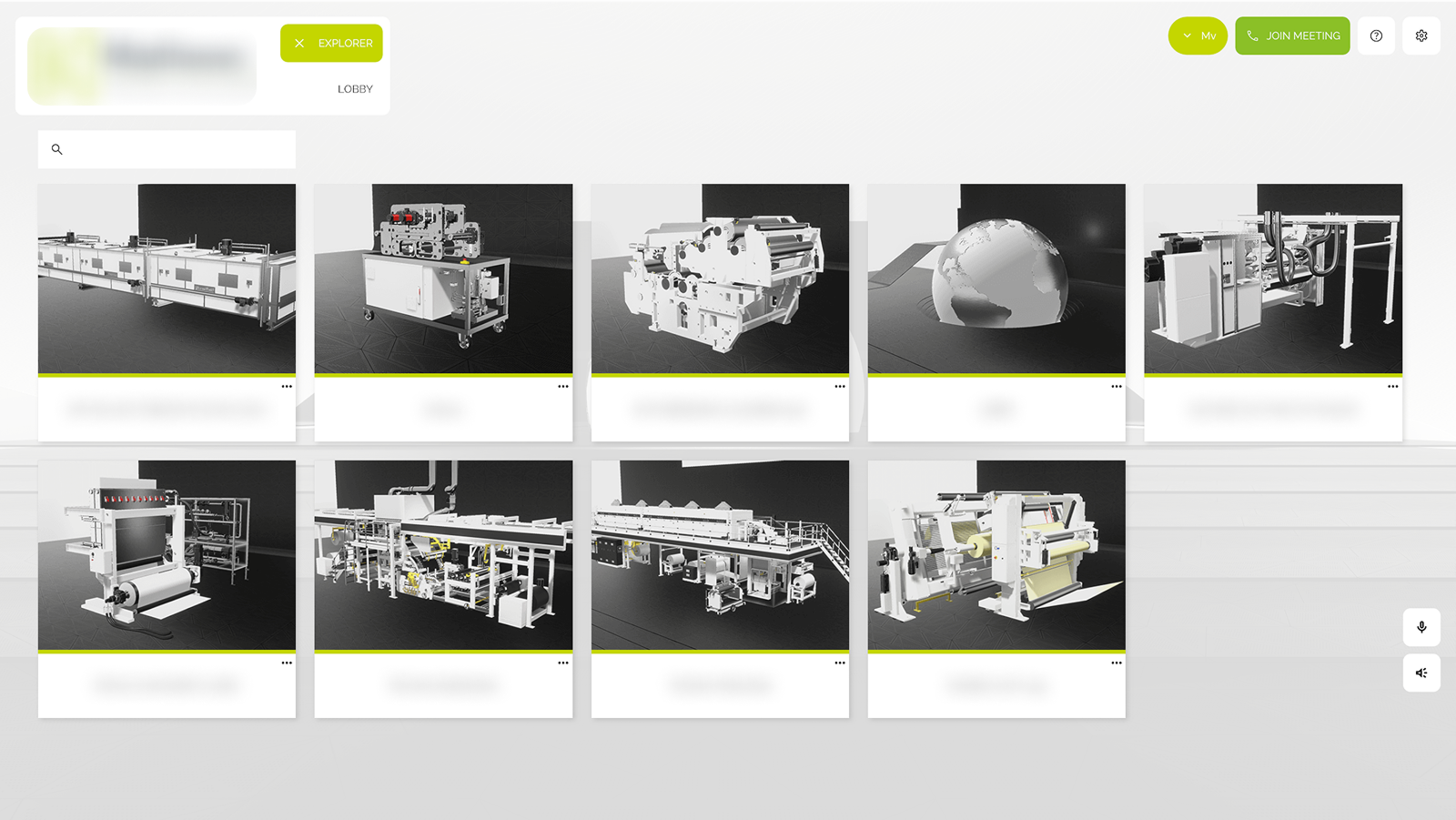
The open Explorer grid view, showing available Showrooms.
Download
VISHOW utilizes an efficient download management system that gives you full control over asset loading and device storage. Showrooms, Slideshows, and 3D Models must be downloaded before they can be opened, which ensures optimal performance.
Optimize Performance
If you have a slow internet connection or limited storage, you can choose to only Download Showroom first by clicking the 3-dot Menu. All media will then be downloaded on-demand when you click on them inside the showroom.
To manage your download options, click the 3-Dot Menu on any card:
- Download Showroom incl. all media: Downloads the entire content package (structure and all media) at once, making all media instantly available.
- Download Showroom: Downloads the core showroom structure only. This saves storage and bandwidth, allowing you to load the showroom quickly. Media files will be downloaded on-demand when you interact with them inside the virtual space.
- Preview: View a static thumbnail of the asset.
- Delete: Remove the asset from your local storage.
Search
The integrated Search bar in the Explorer provides quick access to all content layers. You can use it to find:
- Showrooms
- Slideshows
- 3D Models
- Folders
Depending on the configuration, you may also be able to filter your search by tags or categories.
Favorites
You can mark individual cards as favorites by clicking the Star Icon in the top-right corner of the card.
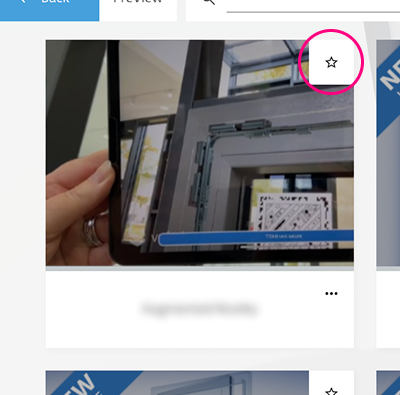
Once marked, the card is automatically added to the Favorites Folder. The Favorites Folder is located at the top-left of the Showrooms overview.
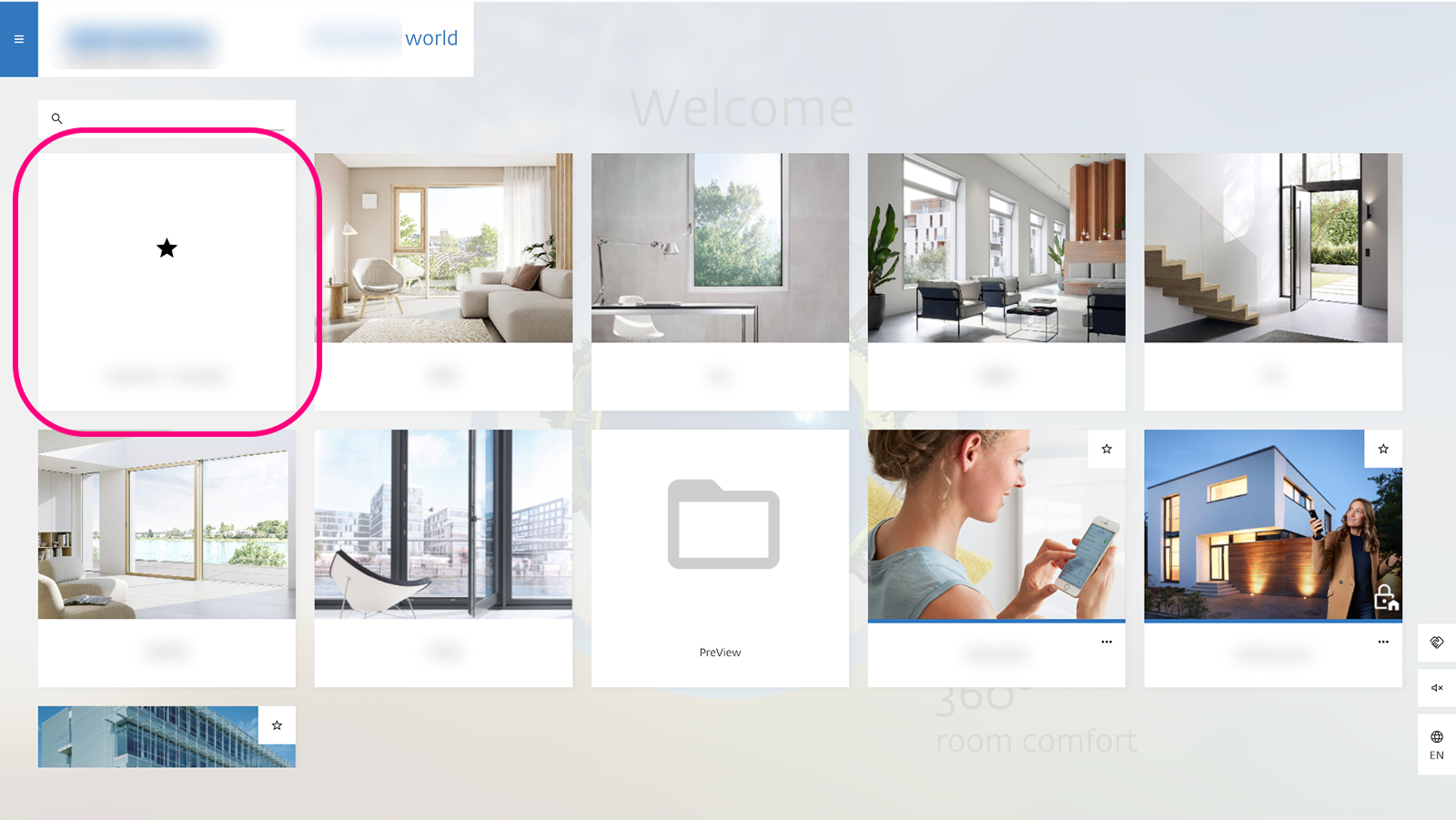
Inside the folder, you'll find all previously marked favorites for the selected customer profile.